

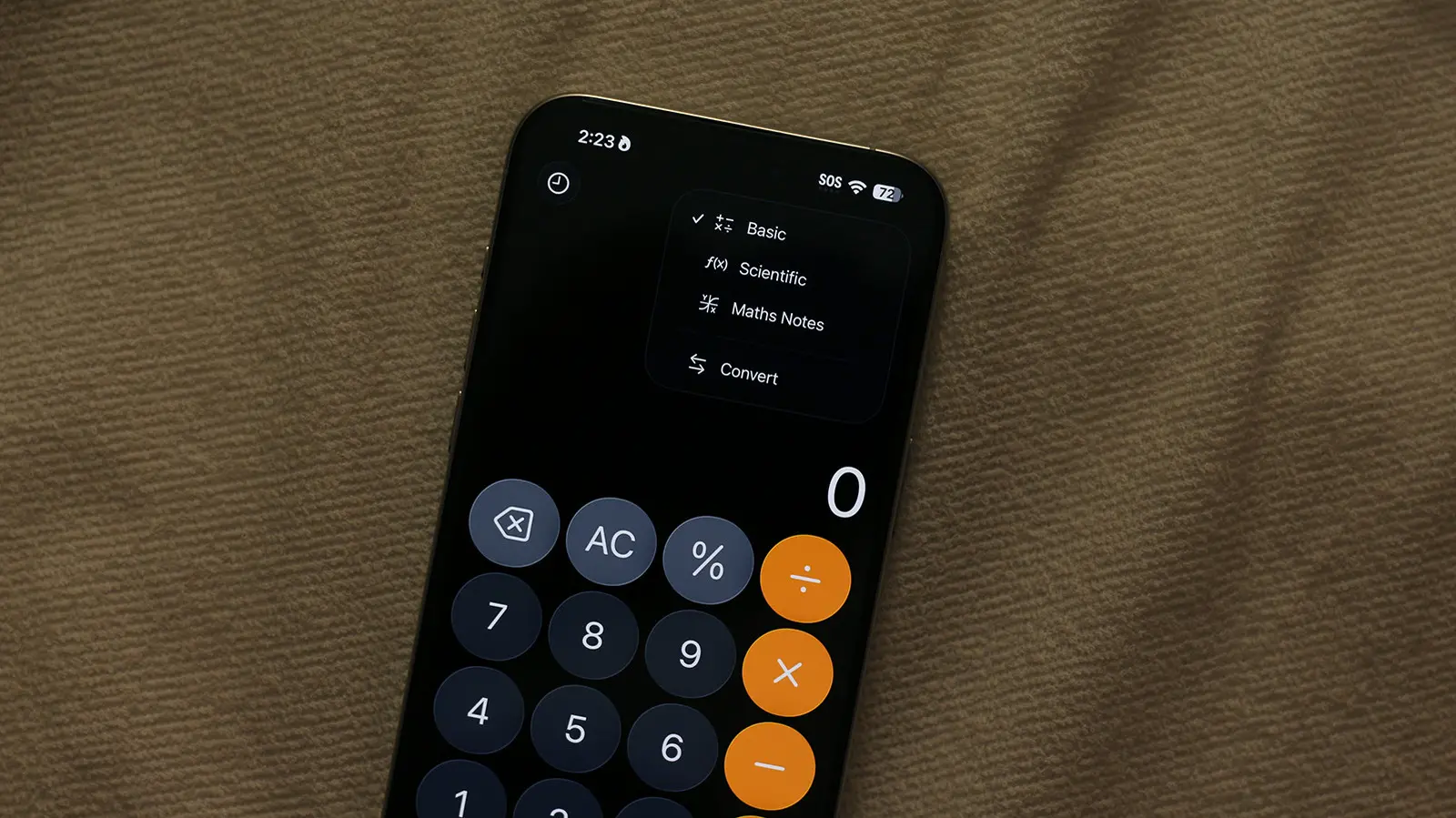
Without the App Store on iOS, we wouldn't be able to play exciting games or get great utility out of purpose-built apps. If there's anything you want your phone to do, it's likely a third-party app exists to do it. This is not to say that the iPhone's built-in apps aren't good — in fact, there's surprisingly a lot you can do with them. The calculator app, for instance, has a minimal user interface that places all the numbers and operators exactly where you'd expect. Previous calculations are saved in the history, and the app can also convert units or currency. You can switch to a scientific calculator, too. But these are only the most obvious features. Underneath the simple surface lies a powerful tool that can handle complex math, assist with everyday conversions, and even let you write equations by hand. In this article, we will dive deep into every capability of the iPhone calculator app, from the basic to the advanced, and show you how to unlock its full potential.
The Evolution of the iPhone Calculator
When the original iPhone launched in 2007, the calculator app was intentionally basic. It could perform addition, subtraction, multiplication, and division — nothing more. Apple designed it to be instantly familiar, mimicking a pocket calculator's layout. Over the years, the app evolved gradually. With iOS 2, Apple introduced a scientific calculator that appeared when you rotated the phone to landscape orientation. This gave users access to trigonometric functions, logarithms, exponentials, and constants like pi. In later updates, the calculator gained a history view, letting you tap the white bar at the top to see your recent calculations. Unit and currency conversion were added more recently, first appearing in iOS 16. The biggest leap came in iOS 18, when Apple introduced Math Notes — a feature that transforms the calculator into a dynamic math notebook. These updates reflect Apple's broader philosophy: that built-in apps should be powerful enough for most users, while remaining simple and intuitive.
Basic and Scientific Calculations
Even without Math Notes, the calculator app is no slouch. In portrait mode, you get a standard 10-digit display with basic operators. Tap the numbers and operators to build expressions. The app respects the standard order of operations (multiplication and division before addition and subtraction), so you can type a long expression like 3+5×2 and get 13 instead of 16. To see the full history, tap the white bar at the top of the screen. This reveals a list of your recent calculations, and you can tap any result to copy it. Tapping and holding the result also copies it to the clipboard. Rotating your iPhone to landscape mode switches to a scientific calculator that includes sin, cos, tan, log, ln, square root, exponent, factorial, parentheses, and constants like e and π. This mode is perfect for students, engineers, or anyone who needs more than basic arithmetic. However, note that the scientific calculator does not show a history view, so it's best for single expressions.
Unit and Currency Conversion
One of the most practical hidden features is the ability to convert units and currencies directly in the calculator. This works seamlessly both in the regular mode and in Math Notes. In the standard calculator, simply enter a number and then tap the conversion button (looks like a small arrow or an equal sign with a line under it, depending on iOS version). You'll see a menu where you can choose from categories like length, mass, volume, temperature, speed, area, time, and more. For currency, the app uses live exchange rates (requires internet connection) to convert between dozens of world currencies. For example, type 100, tap the conversion button, select length, and choose meters to feet to see the result. This eliminates the need to open a separate conversion app or search the web. In Math Notes, conversions become even more powerful: you can write expressions like "130 USD + 140 AUD =" and the app automatically converts one currency to match the other and sums them, displaying the result in your preferred base currency. The same works for units: "5 miles + 3 kilometers =" gives you the total in miles or kilometers, whichever you prefer.
Introducing Math Notes: The Game-Changer
Math Notes, introduced in iOS 18, is the most significant addition to the calculator app. It allows you to write equations in a notebook-style format, using either typed text or handwritten input (with an Apple Pencil or finger). To create a Math Note, open the calculator app, then tap the calculator icon in the upper right corner and choose "Math Notes." Alternatively, you can convert a regular note from the Notes app into a Math Note by tapping the calculator icon in the toolbar. Math Notes solves expressions as soon as you type an equals sign. If you write "2x + 3 = 11", the app will solve for x and display "x = 4" right below. You can assign variables, create chained calculations where results feed into subsequent expressions, and even plot graphs. For example, write "y = 2x + 3" and then "graph" (or tap the graph icon) to see a dynamic line chart. The graph is interactive — you can pinch to zoom, drag to pan, and tap points to see coordinates. Handwriting recognition is also impressive: Math Notes can interpret sloppy handwriting and convert it to text for solving. If it can't decipher a character, it underlines it with a dotted blue line; if an expression is unsolvable, it gets a dotted red line. You can edit expressions by tapping them, and the result updates instantly. This feature is a boon for students, professionals, and anyone who prefers a more natural way of working with math.
Quick Calculations Anywhere: Keyboard Math Results
You don't need to open the calculator app to solve simple math problems. Apple has integrated math directly into the system keyboard. If you go to Settings > General > Keyboards and enable "Math Results," you can type an expression followed by an equals sign in any text field — Messages, Notes, Mail, Safari, etc. — and the result will appear automatically in the predictive text bar above the keyboard. Tap it to insert the answer. This works for basic arithmetic, percentages, and even conversions (e.g., "25% of 200 =" gives 50). It's a fast and convenient way to calculate tips, split bills, or convert units without leaving your current app. This feature was quietly added in iOS 17 and refined in iOS 18.
Advanced Tips and Tricks
Beyond the main features, there are several hidden nuances. For example, you can copy a result by tapping and holding it. In the standard calculator, if you make a mistake, you can swipe left or right on the display to delete the last digit. In Math Notes, you can rearrange expressions by tapping and dragging them. The app also supports complex numbers, matrices, and statistical functions if you use the scientific mode and manually enter formulas. Another tip: Math Notes are saved automatically in the Notes app under a folder called "Math Notes" — you can access them anytime even if you haven't opened the calculator app. You can also share Math Notes with others via AirDrop or iCloud. For power users, the calculator app integrates with the iPhone's built-in AI — if you have Apple Intelligence enabled, you can ask Siri to open a specific Math Note or perform a calculation using natural language. However, Siri's math abilities are separate from the calculator app.
Practical Use Cases
Imagine you're studying for an exam and need to solve a system of equations. Open Math Notes, write "2x + y = 10" and "x - y = 2", then add a third line "solve". The app will display the solution: x=4, y=2. If you're baking and need to convert cups to milliliters, type "2 cups to ml" and get 473.18 ml. For budgeting, you can create a Math Note with multiple expenses, assign variables, and see totals update automatically. The calculator app's conversion and math capabilities can even help with work tasks like converting inches to centimeters for a woodworking project or calculating currency exchange rates while traveling. With Math Notes, you can also plot functions to visualize data, which is useful for science classes or financial modeling.
Comparing the iPhone Calculator to Android Alternatives
While Android phones have many third-party calculator apps with similar features, the iPhone's built-in calculator stands out for its seamless integration with the operating system. Math Notes, for example, uses the same handwriting engine as Apple Notes, and the keyboard math results are available in any app. Android's default calculator typically includes a history and unit conversion, but lacks a note-taking mode. Some Android manufacturers (Samsung, Google) have added handwriting support in their notes apps, but not in the calculator app itself. The iPhone's unified approach means you can start a calculation in the calculator, switch to Notes to write a complex equation, and then use the result in Messages — all without leaving Apple's ecosystem. This level of integration is one of the key advantages of iOS.
How to Get the Most Out of Math Notes
To truly master Math Notes, practice writing expressions with variables. You can use any letter as a variable, and the app will treat unknown variables as parameters. For example, write "a + b = 10" and then "a - b = 2". The app will not solve for a and b unless you add a "solve" command or an equal sign to each line. You can also use parentheses to control order of operations. If you prefer handwriting, use an Apple Pencil or your finger. The app learns your writing style over time. For graphing, you can define multiple functions and they will be plotted on the same axes. Tap on a graph to add a point or adjust the range. You can also export graphs as images. Finally, remember that Math Notes are stored in iCloud, so they sync across your iPhone, iPad, and Mac (if you have macOS Sequoia or later). This makes it easy to start a calculation on one device and finish on another.
Limitations and Workarounds
No tool is perfect. The iPhone calculator app has a few limitations. The standard mode does not show a history view when in landscape scientific mode. Math Notes can sometimes misinterpret complex handwriting, especially if you have heavy accents or unusual characters. The conversion feature does not support all units (e.g., atomic mass units or light-years). And while Math Notes is powerful, it cannot handle calculus (derivatives or integrals) yet — for that you would need a dedicated app like Wolfram Alpha. Also, the app does not support multiple undo/redo in Math Notes, so be careful when editing. However, Apple has been steadily improving these features with each iOS update, so expectations are that more advanced math functions will appear in future releases.
Security and Privacy Considerations
Since the calculator app processes sensitive data like financial calculations (currency conversions, expense tracking, bank balances), it's important to know that all calculations remain on-device when using Math Notes in the Notes app. Apple does not collect or share your math data. The live currency exchange rates are fetched from Apple's servers, but the actual numbers you enter are not sent anywhere. If you use Siri for math, Apple does process your request on its servers, but anonymized. For most users, the default privacy settings are adequate. However, if you're working with truly sensitive information, you may want to avoid using Siri and rely solely on the calculator app or Math Notes.
As you can see, the iPhone calculator app is far more capable than its minimalist design suggests. From basic arithmetic to advanced scientific calculations, unit conversion, and the revolutionary Math Notes feature, it can serve as a versatile math tool for students, professionals, and everyday users. The keyboard math results feature adds even more convenience, allowing you to solve problems without ever opening the app. While there are some limitations, especially for higher-level math, Apple continues to iterate and improve. By exploring these hidden features, you can save time, reduce your reliance on third-party apps, and get the most out of your iPhone's built-in software. Next time you need to split a bill, convert currency, or solve an equation, just pull out your iPhone — it can do a lot more than basic math.
Source: SlashGear News